Stop annoying SMS pop-ups from interrupting your workflow. Learn the exact steps to disable floating notifications on your Android device without missing any important messages.
- Disabling pop-ups can reduce visual distractions and improve focus.
- You can disable floating notifications while still receiving standard alerts.
- This process helps in optimizing the overall smartphone user experience.
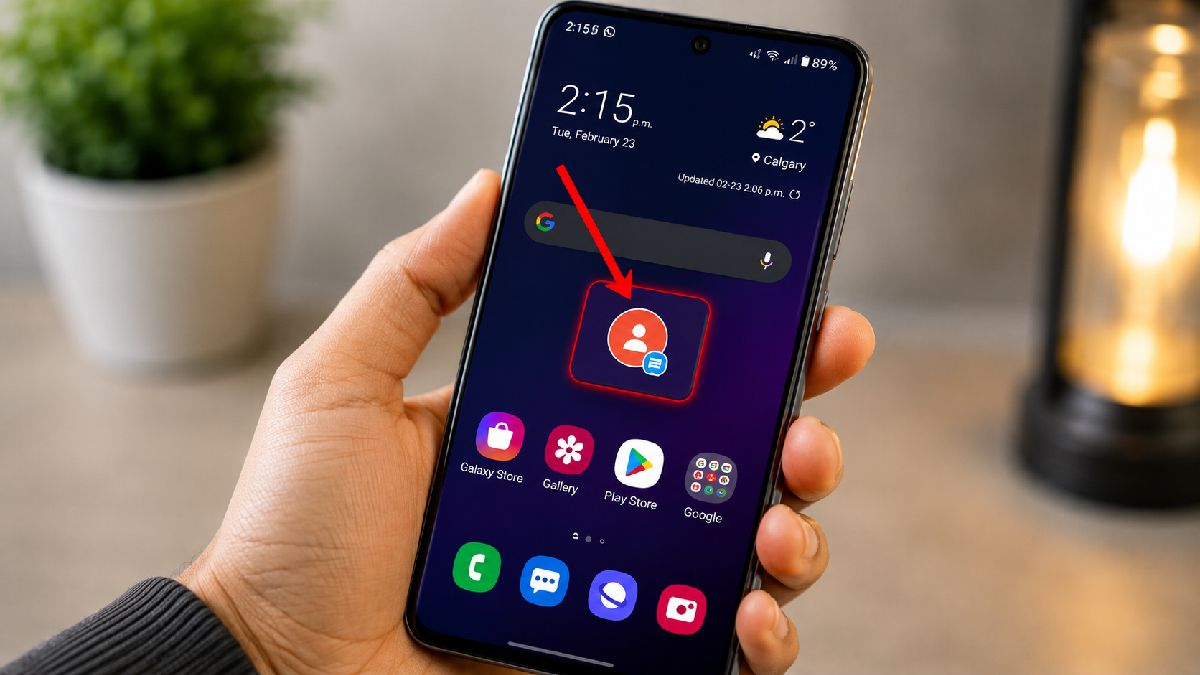
In the modern era of mobile connectivity, Android smartphones are constantly buzzing with notifications. One of the most common irritants for users is the SMS pop-up—that floating window that appears at the top of your screen every time a text message arrives. While convenient for some, for many, it serves as a major distraction during work or media consumption.
Many users mistakenly believe that these pop-up alerts are an unchangeable part of the operating system. However, with a few simple adjustments in your device settings, you can regain control over your screen real estate and minimize interruptions.
Step-by-Step Guide to Removing SMS Pop-ups
Follow these precise instructions to clean up your notification experience:
- Access Settings: Open the main Settings menu on your Android device.
- Navigate to Apps: Scroll down and select the Apps or App Management section.
- Locate Messaging App: Find your primary messaging application (e.g., Google Messages) in the list and tap on it.
- Notification Settings: Within the app info page, tap on the Notifications category.
- Disable Pop-ups: Look for the Incoming SMS or Pop-up settings. Toggle the switch to the 'Off' position.
Why This Matters
BozokMedia analysis shows that managing notification density is crucial for maintaining digital productivity. By eliminating non-essential visual stimuli like floating SMS windows, users can significantly reduce 'context switching'—the cognitive cost of shifting attention from a task to a notification—thereby enhancing overall efficiency.
Customizing your notification profile is the first step toward mastering your digital environment.
Frequently Asked Questions
1. Will I still get notified when I receive a text?
Yes, you will still receive standard notifications in your notification bar and potentially sound alerts, depending on your other settings.
2. Does this affect my battery life?
While the impact is minimal, reducing the number of active UI elements like pop-ups can slightly optimize system performance and battery efficiency.